

Expanding VM disk size on Linux
Expanding VM disk size on Linux
Increasing the size of an existing VM hard disk using fdisk
The responsibility for correctly executing the commands below rests entirely with the person performing them.
The first step of expanding the allocated disk space must be performed according to the "Expanding an existing disk" article.
Once this operation is completed successfully, proceed with the steps below. Connect to the VM either via SSH or via the Console.
All subsequent operations are performed in the command line. Run the command below to display a list of existing partitions (fdisk):
Example command output for disk /dev/sda
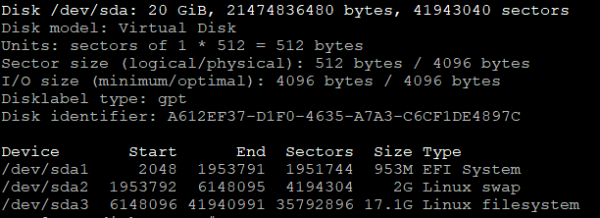
where:
- sda1 — boot sector of the disk;
- sda2 — swap partition (swap);
- sda3 — partition with the installed operating system; this partition needs to be expanded.
Use the following command to select the target disk to be expanded, in our case /dev/sda.
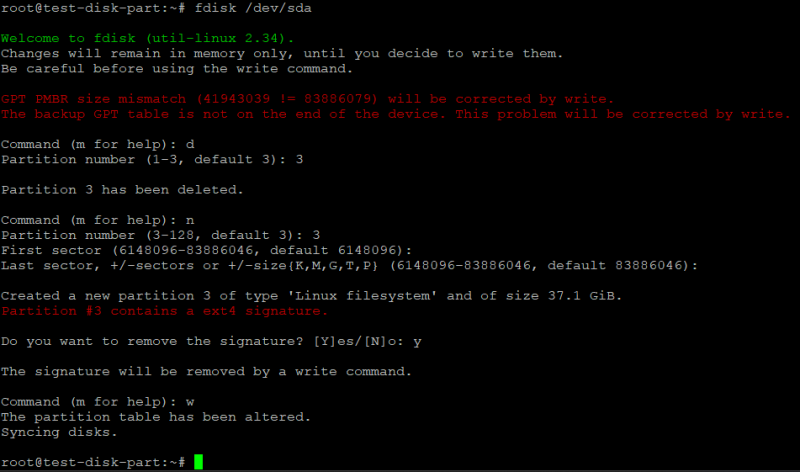
Next, run the d command to delete this partition, selecting, in our case, Partition number (1-3): 3.
Deleting a partition removes only the partition table entry; data is not deleted from the disk.
Next, create a new partition that will take up all available free space:
- Run the n command;
- Select the partition number, in our case Partition number (1-3): 3;
- Leave the First sector (6148096-83886046, default 6148096) at default by pressing Enter;
- Leave the Last sector, +/-sectors or +/-size{K,M,G,T,P} (6148096-83886046, default 83886046) at default by pressing Enter;
- When asked "Do you want to remove the signature? [Y]es/[N]o", answer "Yes" by pressing y and Enter.
To deploy the changes on the disk, run the w command.
Example command output for disk /dev/sda
To apply the partition table changes to the operating system, reboot the system with the command:
After the operating system boots up, instruct the file system to use the entire /dev/sda3 partition using the command below:
Example command output for /dev/sda3

To verify the changes, run the following command:
Example command output showing that the size of partition /dev/sda3 has been increased:

Increasing the size of an existing VM hard disk using gdisk and growpart
The first step of expanding the allocated disk space must be performed according to the "Expanding an existing disk" article. Once this operation is completed successfully, proceed with the steps below.
Connect to the VM either via SSH or via the console. All subsequent operations are performed in the command line.
Run the command below to display a list of existing partitions:
Example command output for disk /dev/sda
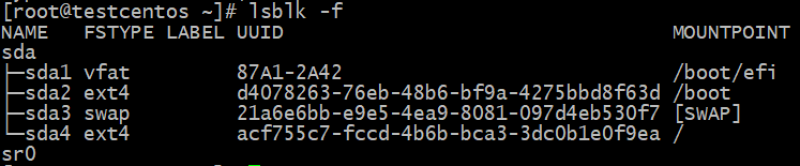
where:
- sda1 — boot sector of the disk;
- sda2 — boot sector of the disk;
- sda3 — swap partition (swap);
- sda4 — partition with the installed operating system; this partition needs to be expanded.
Expand the target partition using the following command, in our case partition 4
Example command output for /dev/sda 4

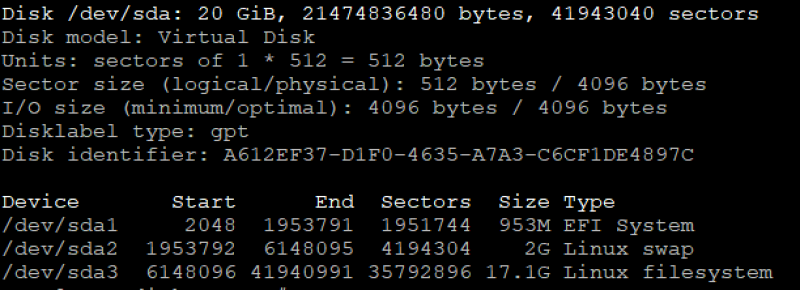
Run the command below to display the partition table and confirm changes to partition 4:
Example command output for gdisk -l /dev/sda
Expand the file system on the partition using resize2fs /dev/sda4
Example command output for resize2fs /dev/sda4
