Nextcloud Web Interface
Nextcloud Web Interface
Browser Requirements
For the best experience with the Nextcloud web interface, we recommend using the latest supported version of one of the following browsers:
- Microsoft Internet Explorer
- Microsoft Edge
- Mozilla Firefox
- Google Chrome / Chromium
- Apple Safari
You can connect to the Nextcloud server using any web browser. Simply enter the URL of your Nextcloud server (e.g., cloud.example.com) and provide your email address in the Username field along with your password:
Navigating the Main User Interface
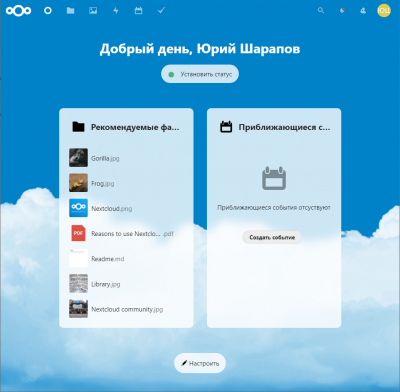
By default, the Nextcloud web interface opens to the Dashboard (Widgets), which displays system status, recently modified files, and upcoming events:
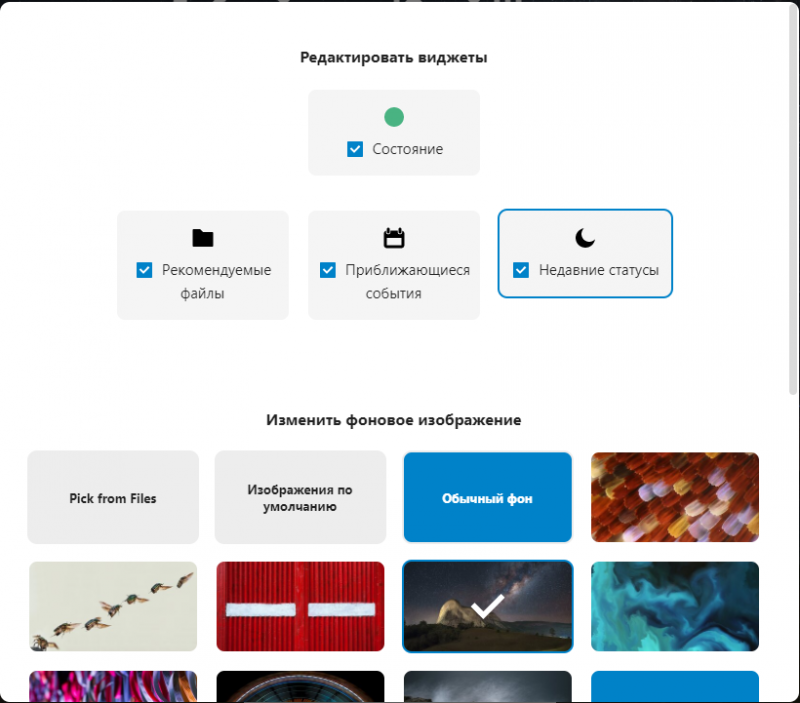
You can customize widget views by clicking the Customize button. In the Edit widgets menu that appears, select which widgets to display and choose a background image. You can also set a custom background by uploading an image to your Nextcloud instance first. Changes are applied immediately without needing to save manually. Close the Edit widgets window when finished.
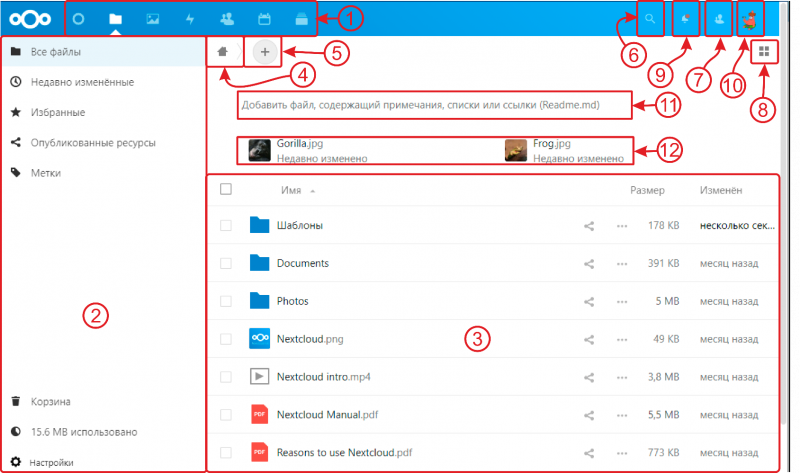
The Nextcloud user interface includes the following elements and functions:
- App navigation menu (1): Located at the top, this displays all apps available on your Nextcloud instance. Clicking an app icon navigates directly to that app.
- App information (2): Located on the left sidebar, this panel provides filters and views associated with the selected application. For example, in the Files app, you have dedicated filters to quickly locate files shared with you or files you have shared with others.
- Application view (3): The primary central content area of the Nextcloud interface. It displays the contents, files, or specific features of the selected application.
- Navigation bar (4): Located above the main viewing area (Application view), this bar provides folder navigation path breadcrumbs that allow you to jump back up through the folder hierarchy to the root level.
- 'New' button (5): Located in the navigation bar, the New
 button allows you to create new files, create new folders, or upload files. You can also drag and drop files and folders directly from your local file manager into the central viewing area (3) to upload them.
- Search field (6): Click the magnifying glass icon in the top right corner to search for files, users, and entries across the current application.
- Contacts menu (7): Provides a quick overview and lookup of contacts and users on your server.
- View toggle button (8): Resembles four small squares; toggles the display between list view and grid view for folders and files.
- Notifications button (9) Allows you to view current system notifications and enable desktop browser notifications.
- Settings (10): Click your profile picture to the right of the search field to open the settings menu. (See Personal Settings Menu for details).(Подробнее в Меню персональных настроек)
- Folder description (Readme.md) (11) A text file displayed at the top of the selected folder used to provide context and descriptions.
- Recent documents (12) Displays recently added or modified files.
Managing Files via Nextcloud Interface
Through the Nextcloud web interface, you can access your files to create, view, edit, delete, share, and exchange files and folders.
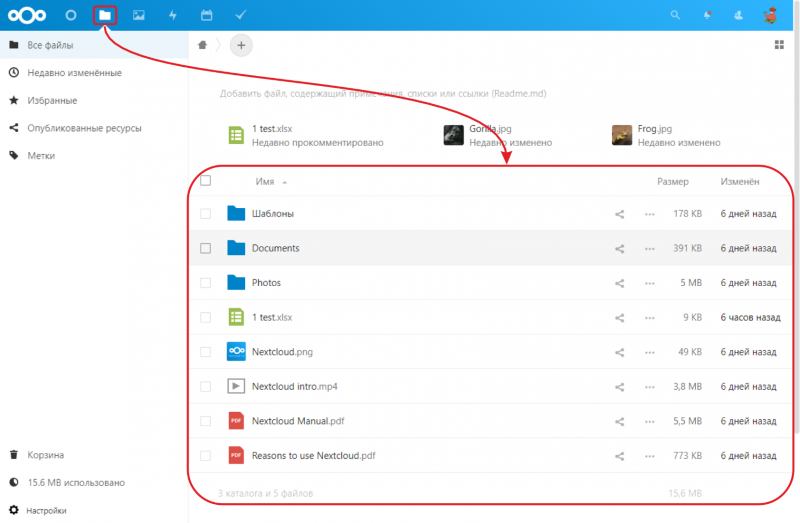
Filtering Files
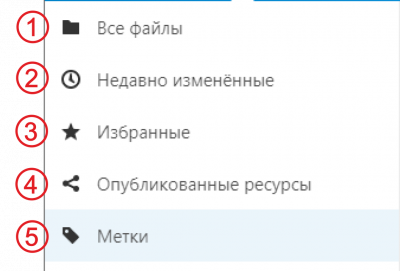
The left sidebar (detailed in Navigating the Main User Interface) provides several filters for quickly sorting and organizing your files:
* All files (1) Files and folders available to you for viewing and editing.
- Recent (2) — Recently uploaded files or files and folders with recent modifications.
- Favorites (3) — Files or folders marked as favorites for fast access.
- Shares (4) — Files and folders shared with others or shared with you.
- Tags (5) — Allows searching and filtering files or folders by assigned tags.
Creating and Uploading files and folders
You can create a new file or folder or upload files by clicking the New button in the Files app.
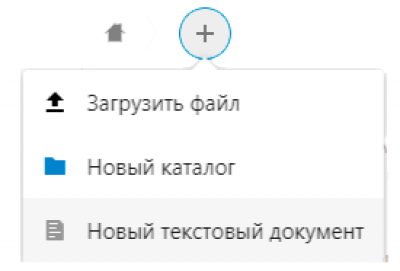
To upload a file from your computer to Nextcloud, click Upload file or drag and drop items from your desktop file manager directly into the Files app content area.
New folder creates a new folder in the current directory.
New text document creates a new plain text file and places it in your current directory.
Moving files and folders
You can move files and folders by dragging and dropping them into any folder.
Selecting Files and Folders & Bulk Actions
You can select one or more files and folders by selecting their corresponding checkboxes. To select all files in the current folder, check the select-all box at the top of the file list.
Once multiple items are selected, you can copy, move, delete, or download them as a ZIP archive using the action buttons that appear in the top toolbar.

Context Menu (More Options)
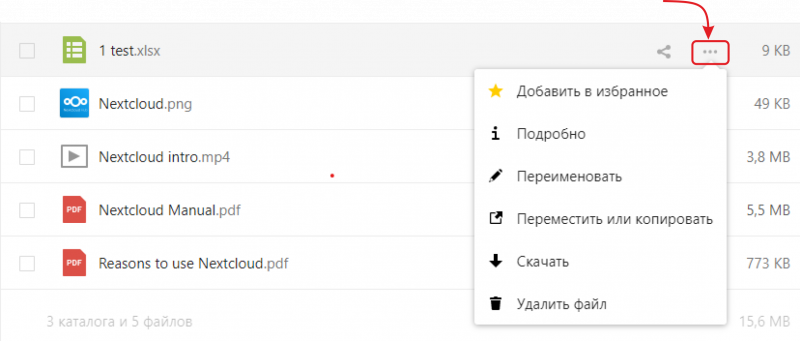
The context menu — accessed by clicking the three dots icon (...) or right-clicking on an item — allows you to add items to Favorites, rename, download, delete, and view file or folder details.
File tags
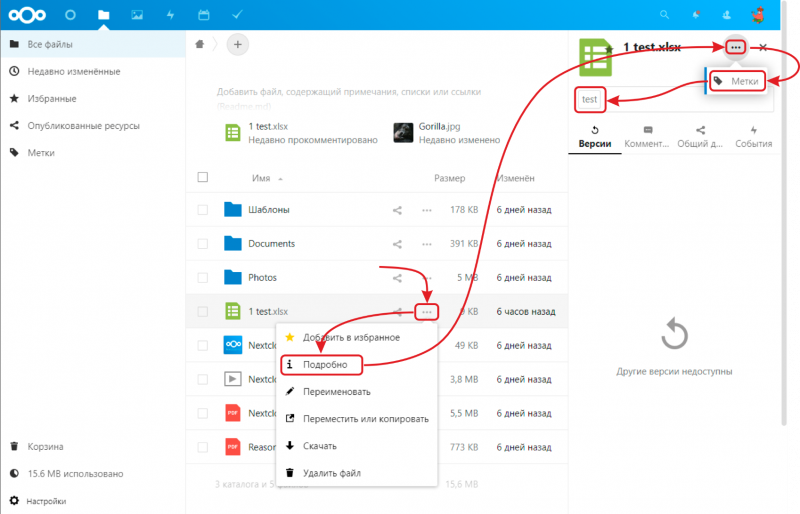
You can assign Tags to files. Open a file in the details sidebar view, then enter your tags. You can add multiple tags to an item; press Enter after entering each tag. All tags are system-wide and visible to all users.
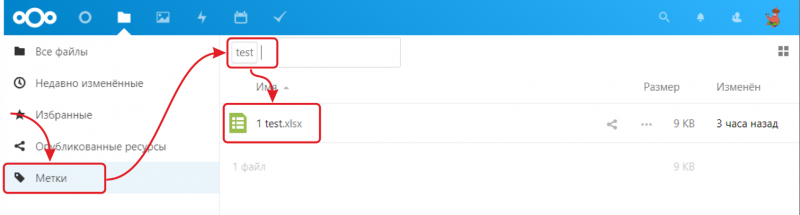
You can then use the Tags filter in the left sidebar to filter your file list.
Version History
Nextcloud includes a built-in file versioning system. Creating versions produces backup copies that can be accessed under the Versions tab in the Details sidebar. This tab displays the version history of a file, allowing you to restore any earlier revision. To restore a specific version, click the circular arrow icon to the left of the selected version; note that restoring an older version will delete all subsequent versions created after it.
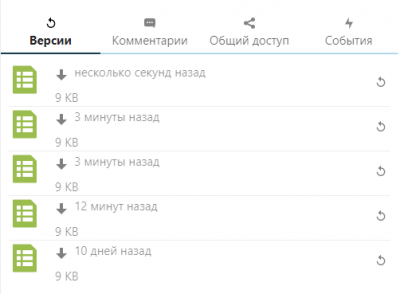
The version control application automatically purges file versions older than 30 days. File versions will never consume more than 50% of the user's currently available free storage quota. If stored versions exceed this threshold, Nextcloud automatically deletes the oldest versions until disk usage drops below 50% of available space.
Comments
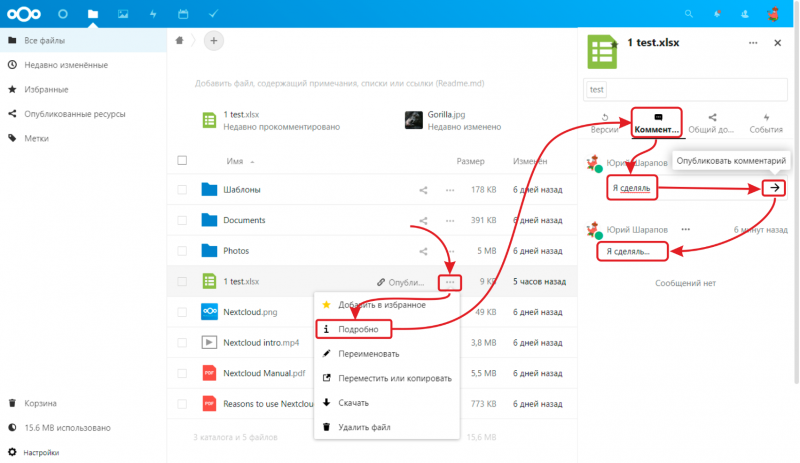
Open a file in the details sidebar view and select the Comments tab to read and post comments on any file or folder. Comments are visible to all users who have access permissions to the file.
File Sharing
Nextcloud allows you to share files and folders using the following sharing methods:
- Public links (1) — Used to grant access to a file or folder to users outside your Nextcloud instance.
- Internal links (2) - Used to grant access to a file or folder to specific users and groups within your Nextcloud instance.
You can also attach a file or folder to a project (see the Deck / Cards article for details) (3).
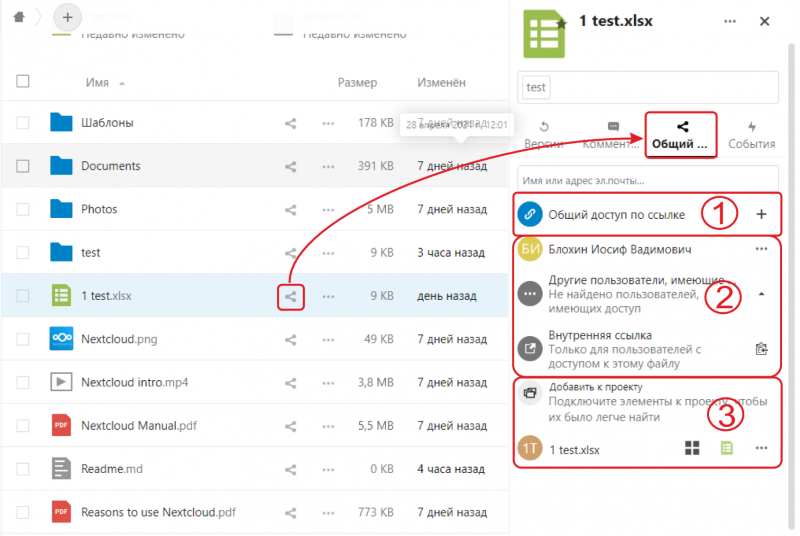
Public links
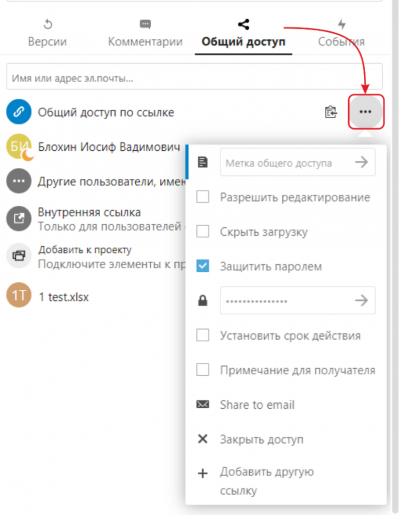
You can share files and folders with external users via public share links. In the file share link configuration menu, you can configure:
- Tag for the file (see File Tags)
- Allow editing
- Hide download — Disables the option to download the file directly
- Password protect
- Set expiration date — Defines an automatic expiry date for the link
- Note to recipient
- Shared to mail — Launches your default email client to send the link
- Revoke access
- Add another link — Allows creating multiple distinct public links with different permissions
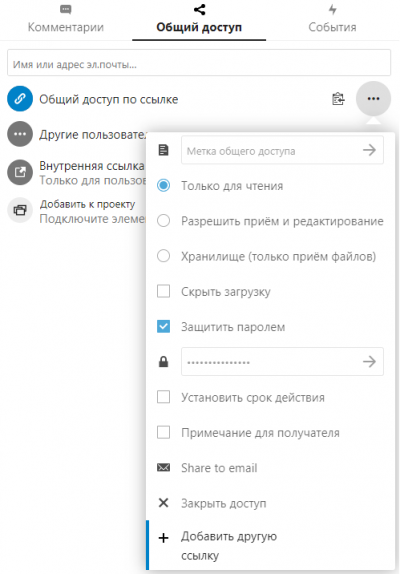
The public link menu for folders provides different access settings:
- Read Only — Allows recipients to view and download files only
- Allow upload and editing — Allows recipients to view, download, and upload files into the folder
- File drop — Allows recipients to upload files only, without viewing the contents of the folder
Internal links
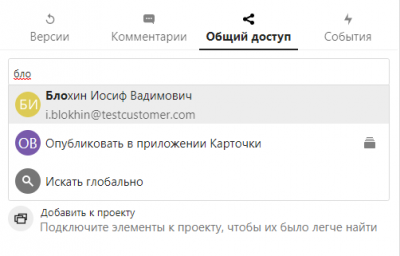
You can share a file or folder with internal users on your Nextcloud instance for collaborative viewing and editing. Enter the username in the search field; as you type, auto-complete will display matching users for you to select.
In the access permission menu for a shared file, you can configure:
- Allow editing
- Allow resharing — Allows the recipient to share links to the file or folder with other users
- Set expiration date — Defines an automatic expiry date for access
- Note to recipient
- Revoke access
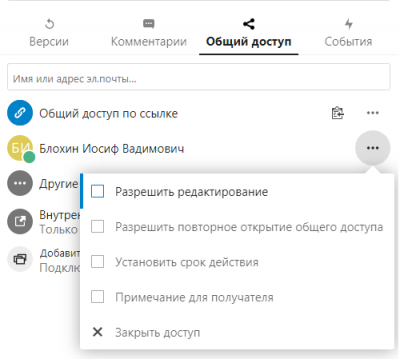
The access permission menu for folders provides additional options:
- Allow creating — Allows the recipient to create and upload new files and subfolders
- Allow deleting — Allows the recipient to delete files and subfolders
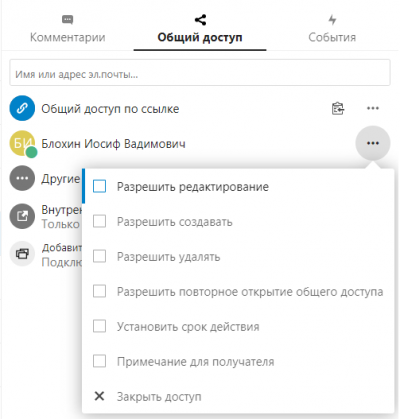
Sharing Status Icons
A folder or file that has been shared internally is indicated by a share icon (1). Public links are marked with a chain link icon (2).
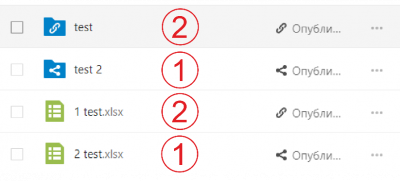
Transferring File or Folder Ownership
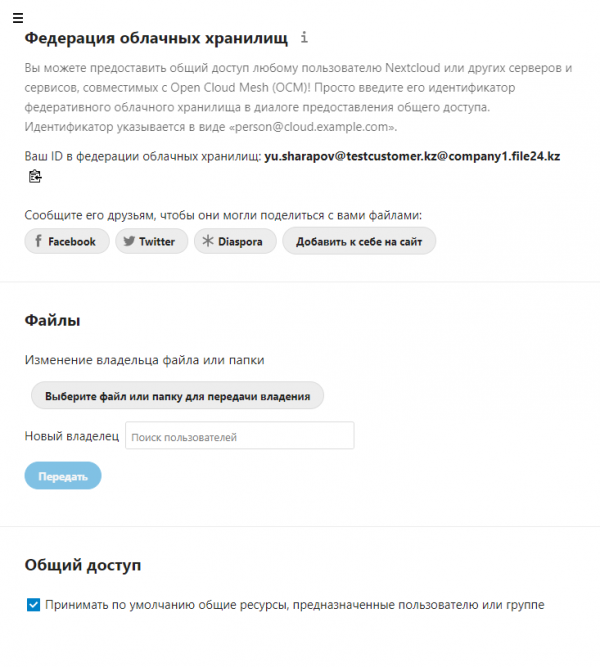
You can transfer ownership of files or folders to other users. Existing shares and collaborator permissions will be transferred along with the data. Navigate to Settings, open the Sharing tab (see Sharing), under Files click Choose file or folder to transfer ownership, and select the target item. In the New owner field, select the target user and click Transfer.
Personal Settings Menu
You can manage your personal profile and account settings. To access them, open the Settings menu.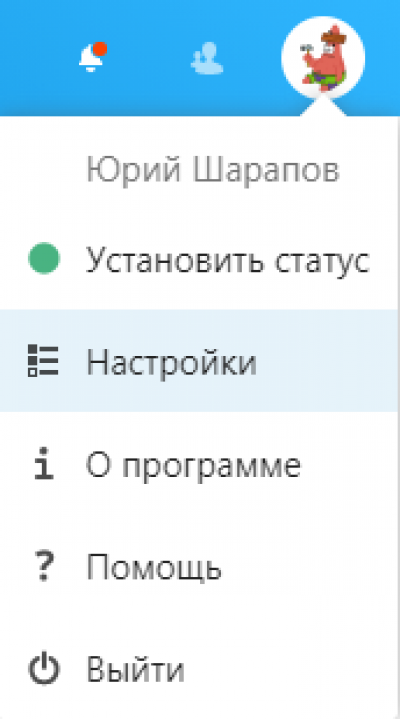
Personal Information
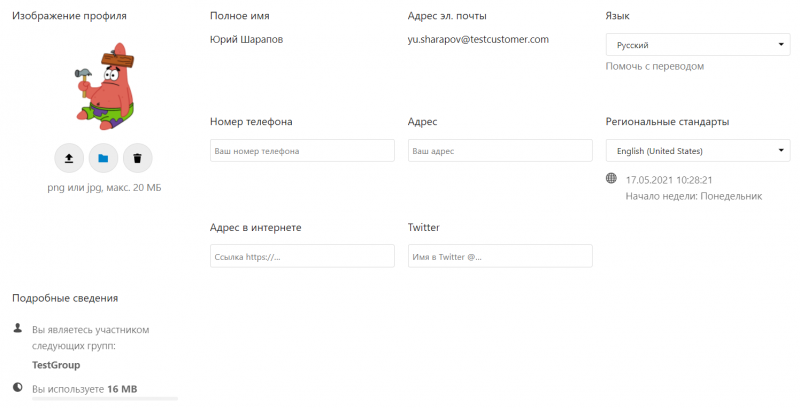
The options listed on the Personal Info page depend on the apps enabled by your administrator. Common profile fields include:
- Profile picture management
- Storage usage percentage and available quota
- List of group memberships
- Full name (can differ from your Nextcloud login username, which is permanent and cannot be modified)
- Email address
- Phone number
- Physical address
- Change password (disabled when centralized/federated user authentication is active)
- Nextcloud interface language selection
- Locale and regional format selection
- Social media profiles
Security
The Security tab provides the following configuration options:
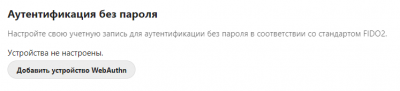
Passwordless Authentication — Allows you to register a hardware security key (e.g., tokens like https://shop.nitrokey.com/shop) to log in to Nextcloud without entering a password.
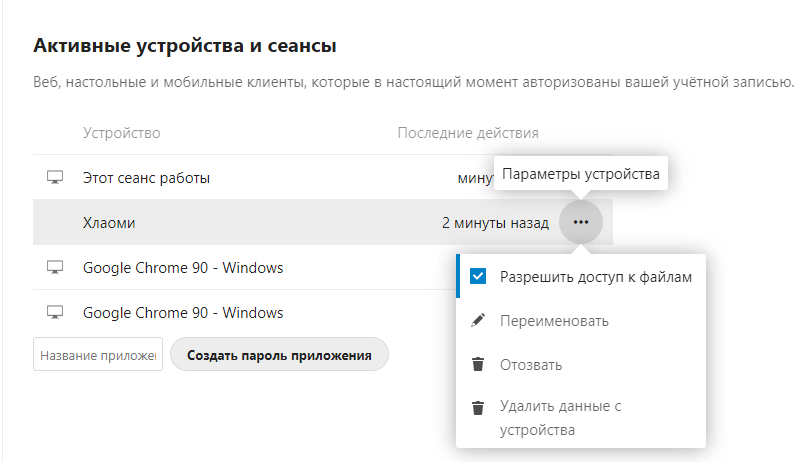
Devices & Sessions — Displays all devices currently authenticated with your username and password. From here, you can revoke active sessions, wipe synchronized device data remotely, and rename mobile device connections.
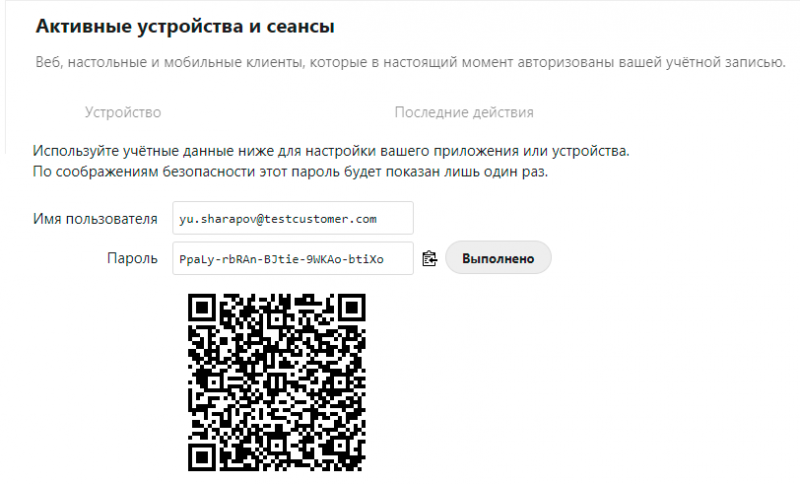
Create New App Password — Generates single-use application passwords and QR codes for authenticating mobile and desktop sync clients.
Activity
Under the Activity tab, you can configure email notifications for various system events:
- Files — Notifications regarding files and folders shared with you, as well as changes made to shared resources.
- Calendars и задачи – Notifications for upcoming appointments and due dates.
- Other events – Notifications when you are added to groups, or when comments are posted on files, folders, and cards.
Desktop and Mobile Clients
The Desktop & Mobile Clients tab provides direct download links for client applications across supported platforms.
Accessibility
The Accessibility tab allows customizing visual accessibility themes and interface appearance.
Sharing
The Sharing tab contains the following sections:
- Federated cloud sharing – Configures federated sharing connections across separate cloud installations.
- Files – Transfer ownership of files and folders to another user (see Transferring File or Folder Ownership).
- Sharing – Allows you to accept or reject incoming public shares and folder invitations.