Nextcloud Mobile App
Last modified by Cloud24 on 03.09.2000
Nextcloud Mobile App
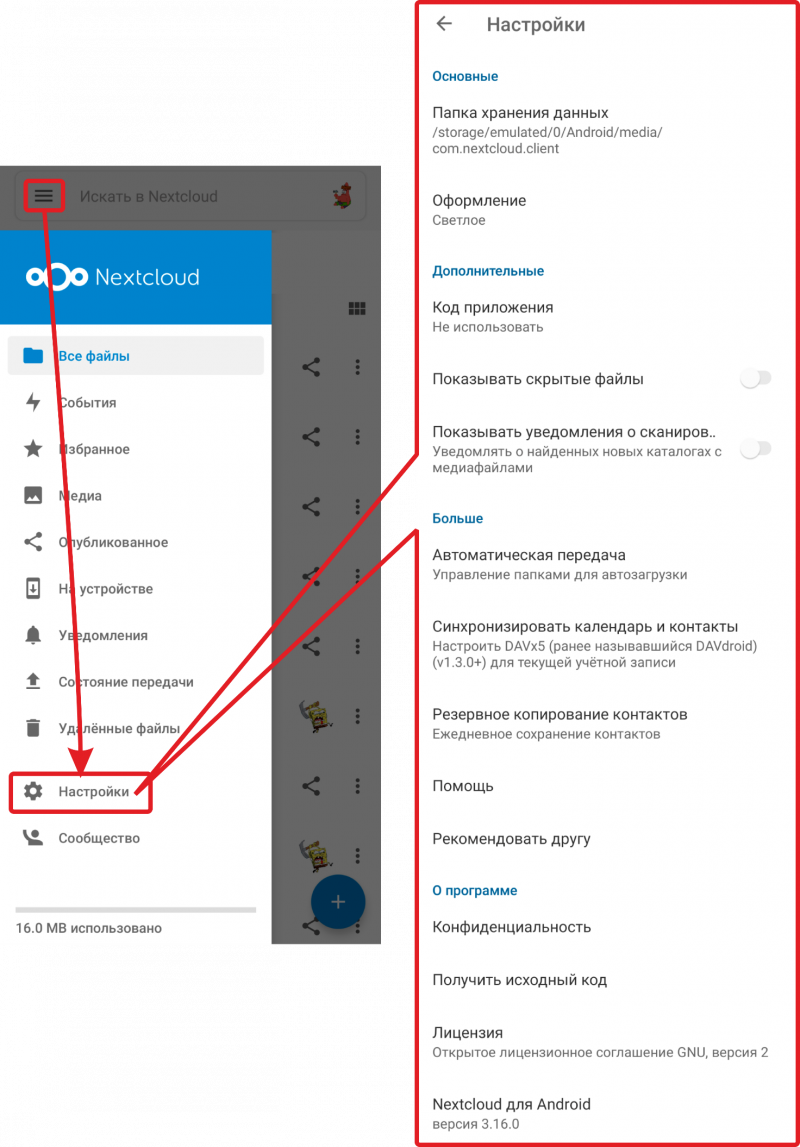
The mobile app is available for both Android and iOS. After installation, launch the Nextcloud app, tap Log in, enter the server address provided to you (for example, example.cloud.com) in the Server address field, tap Log in in the Login window, enter your email address in the Username field, and enter your password in the Password field. In the Account access window, tap Grant access.
Nextcloud Mobile Interface
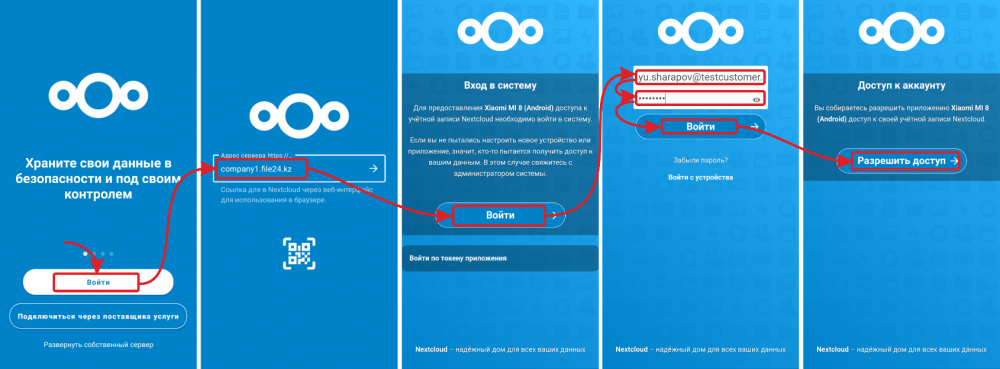
The Nextcloud mobile app user interface replicates the core functions and fields of the Nextcloud web interface:
- App menu (1): in the upper left corner, you will find the main app menu.
- Search field (2): to search, start typing a file name, and the app will suggest matching files or folders.
- File sort order (3): you can select the sorting order of files in the app: alphabetically, by creation date, or by size.
- App content (4): the primary central area in the Nextcloud mobile user interface. This area displays your content and user actions.
- View toggle button (5): resembles four small squares that toggle the grid view for folders and files.
- Share button (6): allows you to share files and folders with other users. If a file or folder is already publicly shared, the avatar of the user who has access to the file or folder will be displayed (8).
- More options menu (7): allows you to add to Favorites, rename, download, delete, move, synchronize, and view detailed information about a file or folder.
- Add button (9): allows you to create new files and folders, upload files from your mobile device, add folder descriptions, and upload photos directly from the camera.
Main Menu
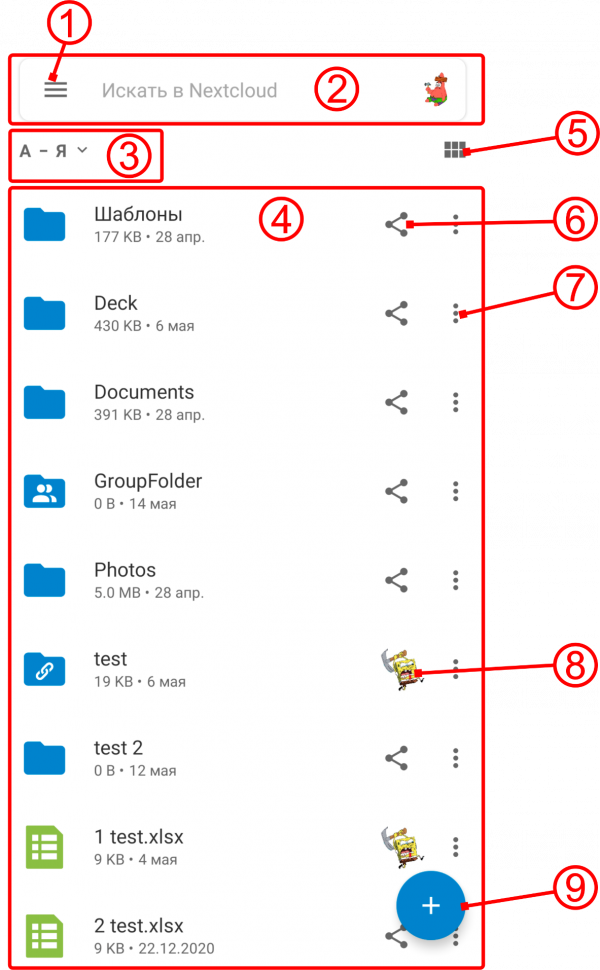
The main menu of the application includes the following features and options:
- All files (1) — files and folders available to you for editing and viewing;
- Activity (2) — displays recent file activity and events;
- Favorites (3) — files or folders added to favorites for quick access;
- Media (4) – photos and video files available to you;
- Shares (5) — shared files and folders;
- On device (6) – displays files and folders downloaded to the device;
- Notifications (7) – displays upcoming or past events in calendars and decks;
- Transfer status (8) – displays the queue of files and folders being uploaded to the Nextcloud server;
- Deleted files (9) – files located in the trash bin;
- Settings (10) – application settings;
- Community (11) – allows you to submit bug reports.
Settings
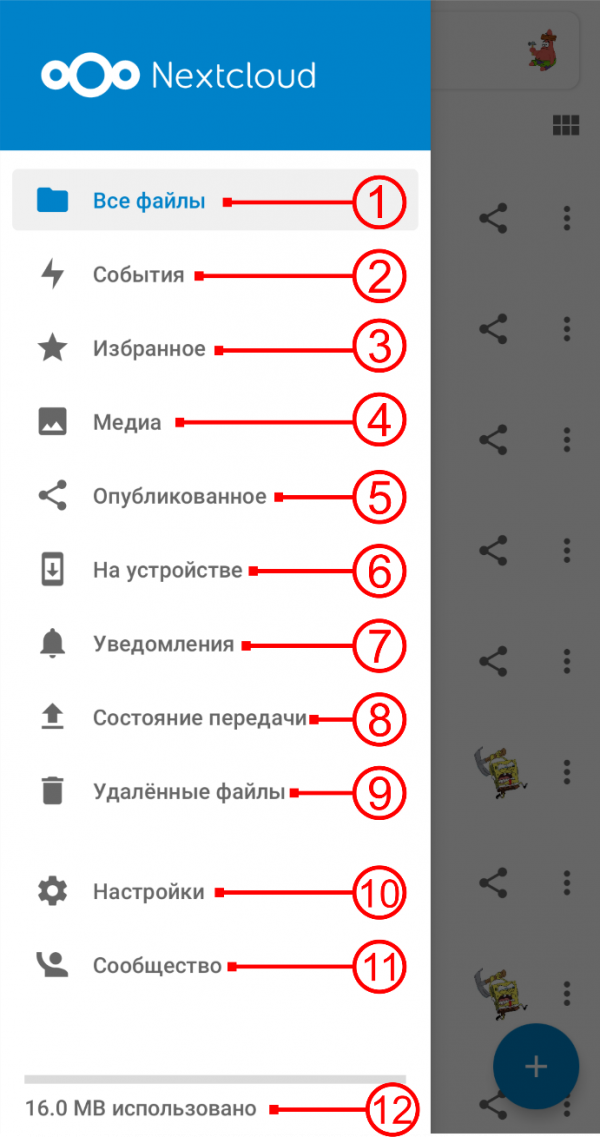
The following settings are available:
- Storage folder — allows you to select a file storage location from a drop-down list;
- Theme — allows you to customize the visual appearance of the application;
- App PIN code — allows you to set up app locking using a passcode or system screen lock; the latter uses the same security method configured to unlock your mobile device;
- Show hidden files — enables the display of hidden files on the device;
- Show media scan notification — Nextcloud will notify you and prompt you to synchronize whenever a new media folder is detected;
- Auto upload — allows you to choose directories on your device to automatically sync with the Nextcloud server;
- Sync contacts and calendar — prompts you to install an auxiliary app to synchronize contacts and calendars from your mobile device to the Nextcloud server;
- Contacts backup — allows you to create a contacts backup and configure automated scheduled backups;
- Help — opens help.nextcloud.com, the community support forum for Nextcloud features and troubleshooting;
- Recommend to a friend — sends a download link for the Nextcloud app.