

Migration and Disaster Recovery
Migration and Disaster Recovery
Getting Started with Cloud Director Availability
Cloud Director Availability offers simple and secure migration and disaster recovery services. Migrating and protecting vSphere workloads: from on-premises sites to a cloud site and vice versa, as well as between Cloud sites.
After the tenant is connected to the cloud provider, the VMware Cloud Director Availability On-Premises appliance connects to the cloud site. vSphere workloads, such as vApps and virtual machines, can be migrated or protected to and from this cloud site.
When Cloud Director Availability is connected to another site, tenants can:
- Replicate vSphere workloads to the cloud site. After replicating a workload using protection, the workload on the source site remains active. When using migration, the workload on the target site becomes active.
- Perform disaster recovery tasks, such as test failover, failover, and failback to the source site.
VMware Cloud Director Availability Tenant Portal
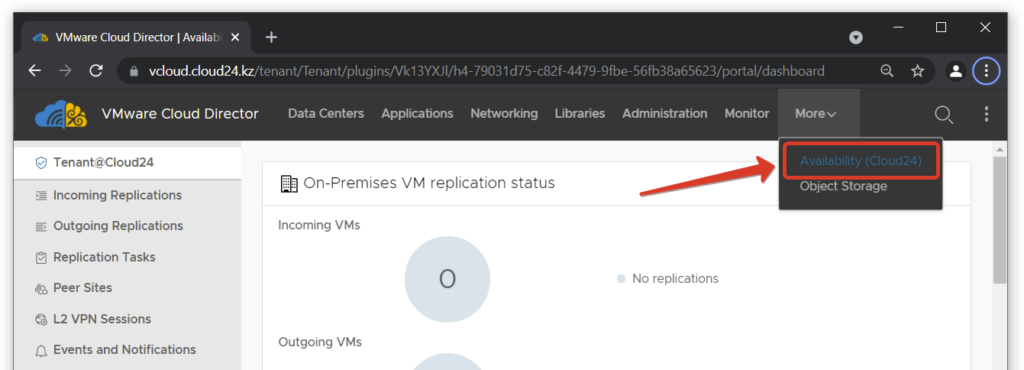
To manage replication through the Cloud Director tenant portal, log into the portal as an organization administrator. To open the VMware Cloud Director Availability portal, click Availability in the main menu.
VMware Cloud Director Availability vSphere Client Plug-In
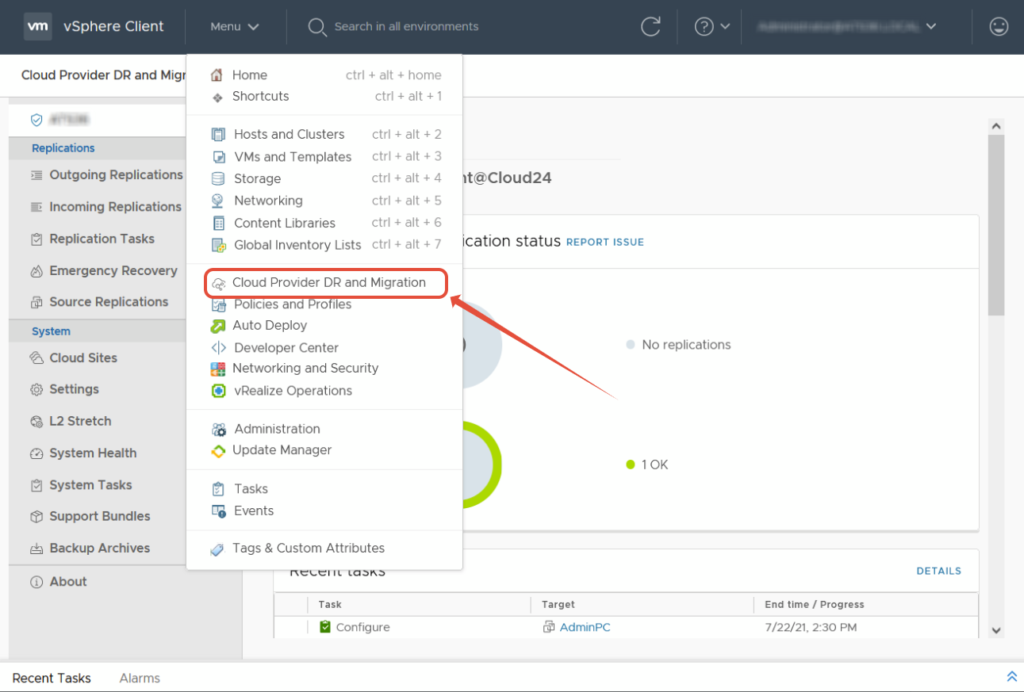
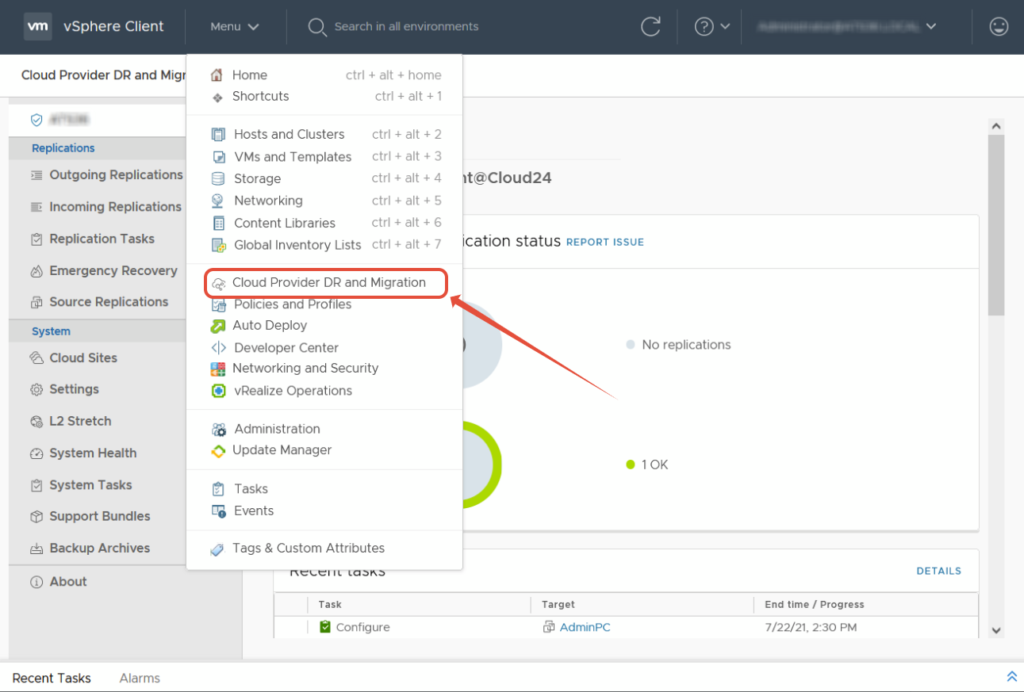
Using the VMware Cloud Director Availability vSphere Client Plug-In, you can create and manage replications from the on-premises environment to the cloud and from the cloud to on-premises. Additionally, you can perform system monitoring, configuration, and maintenance of the local VMware Cloud Director Availability appliance. The plug-in is registered during the initial configuration of the VMware Cloud Director Availability On-Premises appliance.
Connecting the on-premises site to the cloud
In the vCenter Server environment, an organization administrator can protect on-premises workloads or migrate them to the Cloud24.kz cloud site.
For replication to and from the cloud site, deploy one or more instances of the VMware Cloud Director Availability On-Premises Appliance in the local vCenter Server.
VMware Cloud Director Availability always initiates the network connection from the on-premises site to the cloud site.
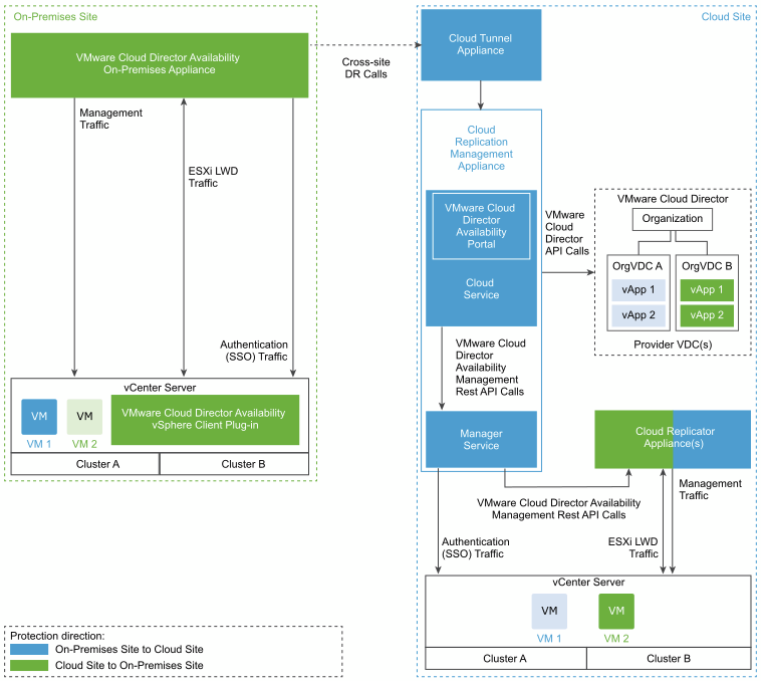
To connect your on-premises site to the Cloud24.kz cloud, follow these steps:
- Review the solution architecture
- Ensure your on-premises site meets the requirements
- Check compatibility with other products
- Download and deploy the VMware Cloud Director Availability On-Premises Appliance
- Configure the VMware Cloud Director Availability On-Premises Appliance
After configuration, you can start creating and managing replications from the on-premises site. To do this, log in to your vCenter Server using the vSphere Client, authenticate with the SSO administrator credentials, and access the VMware Cloud Director Availability plug-in from the main menu.
Configuring replication
In the VMware Cloud Director Availability tenant portal or the VMware Cloud Director Availability vSphere Client Plug-In, you can protect or migrate workloads by replicating vApps or virtual machines from one site to another.
The following types of replication are available:
- Migration — when migrating a vApp or virtual machine to a remote site, the workload starts on the target site.
- Protection — protecting a vApp or virtual machine keeps the workload powered on at the source site.
Recovery Point Objective — RPO
RPO is the longest acceptable time interval of data loss. For example, with an RPO of one hour, a recovered virtual machine can lose no more than one hour of data. Shorter RPO intervals provide less data loss during recovery at the expense of higher network bandwidth utilization.
Configuring a migration task (migration)
Before performing a migration, you need to configure a migration task.
Procedure:
- In the left pane, select the replication direction (Incoming Replications or Outgoing Replications).
- Select All Actions > New migration.
- Далее следуйте подсказкам мастера новой репликации.
- Next, follow the prompts of the new replication wizard. On the first page, select the site, vApp, and virtual machines for the given replication and click Next.
- On the Target VDC and Storage policy page, select the target virtual datacenter for replication and the storage policy for placing the recovered virtual machines, and click Next.
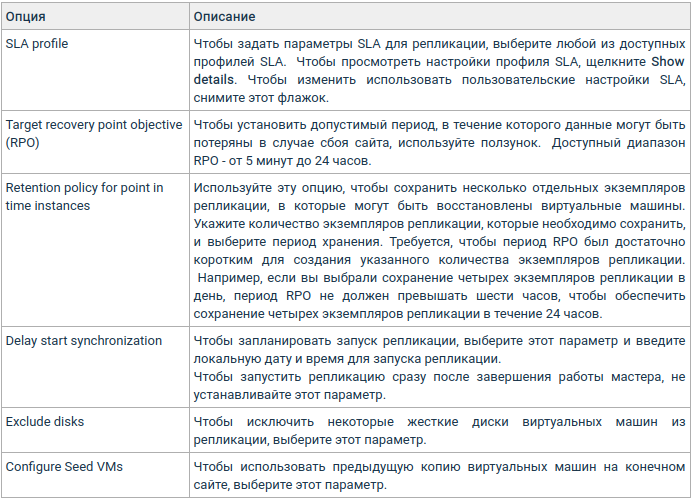
- On the Settings page, configure the following replication settings and click Next.
- (Optional) To delay the start of replication, select Delay start synchronization and enter the date and time to start the replication.
- (Optional) To exclude some virtual machine hard disks from replication, select Exclude disks.
- (Optional) To use a previous copy of the virtual machines on the target site, select Configure Seed VMs.
- If you selected Configure Seed VMs, on the Seed VM page you must select the vApp or virtual machine to use as the target workload and click Next.
- If you selected Exclude disks, on the Disks page you must select the hard disks to replicate and click Next.
- On the Ready to Complete page, verify that the replication settings are correct and click Next.
Configuring a protection task (protection)
You can protect a vApp or virtual machine using the Cloud24.kz cloud, thereby keeping the workload running on your on-premises site. If your on-premises site becomes unavailable, you can perform a failover and power on the protected virtual machine in the Cloud24.kz cloud.
Procedure:
- In the left pane, select the replication direction (Incoming Replications or Outgoing Replications).
- Select All Actions > New protection.
- Follow the prompts of the new replication wizard.
- On the first page, select the site, vApp, and virtual machines for the given replication and click Next.
- On the Target VDC and Storage policy page, select the target virtual datacenter for replication and the storage policy for placing the recovered virtual machines, and click Next.
- On the Settings page, configure the following replication settings and click Next.
- If you selected Configure Seed VMs, on the Seed VM page you must select the vApp or virtual machine to use as the target workload and click Next.
- If you selected Exclude disks, on the Disks page you must select the hard disks to replicate and click Next.
- On the Ready to Complete page, verify that the replication settings are correct and click Next.
After replication is complete for the vApp and its virtual machines, you will see the migration status in the Replication type column.
Configuring replication network settings
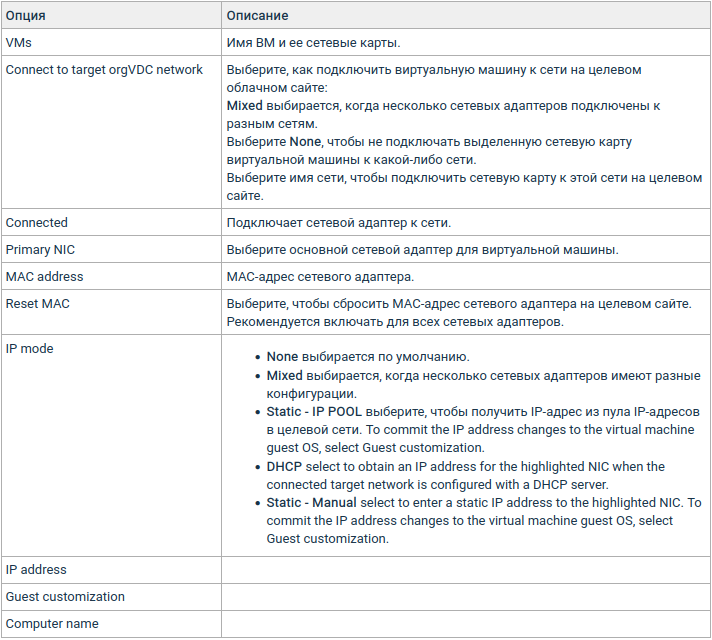
For replication from the on-premises environment to the cloud, you can configure network settings for the vApp or virtual machine. These network settings are applied at the target cloud site after a migration, failover, or test failover.
Procedure:
- In the Incoming Replications window, select the on-premises site as the source, and then select the vApp or VM.
- Go to All actions > Network settings.
- In the Network Settings window, configure the target network settings for the selected replications.
- Click Apply.
Migration and failover
Performing a migration (Migrate)
When migrating a vApp or virtual machine from an on-premises site to the Cloud24.kz cloud or vice versa, the workload starts on the target site and the source workload is powered off.
Migration process:
- In the left pane, select the replication direction.
- Select the vApp or virtual machine to migrate and click All actions > Migrate.
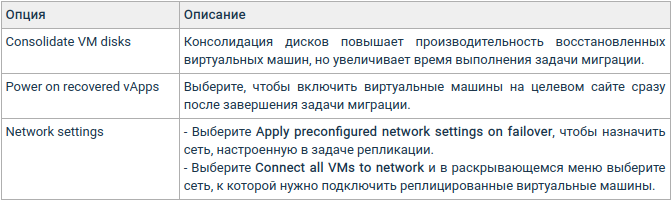
- In the migration wizard, configure the selected workload for migration.
- On the Migrate Settings page, configure the workloads to be recovered and click Next.
- On the Ready To Complete page, review the task details and click Finish.
- To monitor the task progress, click the Tasks tab in the bottom pane.
If the source workload is powered on, it is powered off and synchronization starts. Then the vApp or virtual machine is powered on at the target site.
Performing a failover (Failover)
If the protected source site is unavailable, you can perform a workload failover operation on the target site.
Performing a failover:
- In the left pane, select the replication direction.
- Select the vApp or virtual machine and click All actions > Failover.
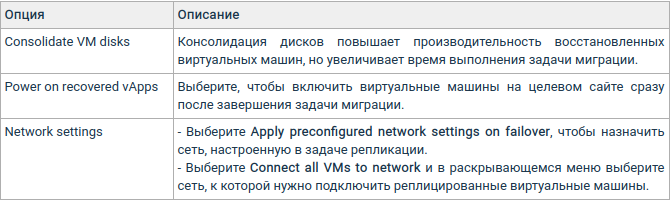
- In the test failover wizard, configure the selected workload for failover.
On the Recovery Settings page, configure the workloads to be recovered and click Next.|
On the Recovery Instance page, select a recovery point and click Next.
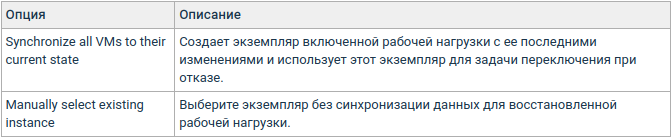
On the Ready To Complete page, review the task details and click Finish.
To remove the test failover results, select the replication to clean up.
- Choose All actions > Test Cleanup.
- In the Test Cleanup, choose Cleanup.
Replication Status
The replication status depends on the status of the virtual machines contained in the vApp replication. Depending on the replication state, you can perform certain actions.
Overall Health Replication Status
Overall Health shows the overall health status of the replication with color coding.

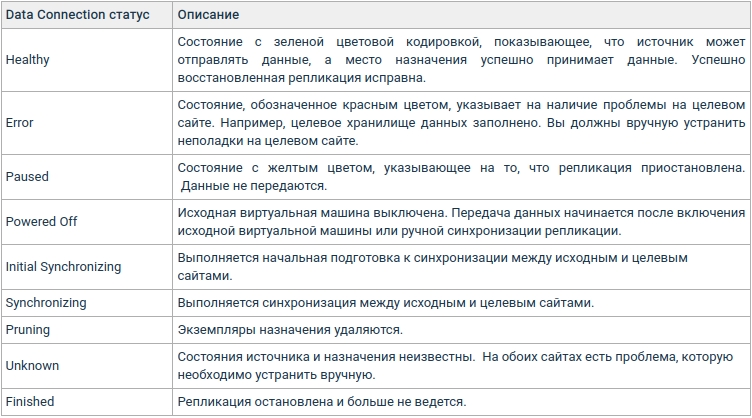
Data Connection Status
When replication is configured, the data connection status shows the replication state.
Recovery Status
Shows the replication status after performing a recovery operation.
